
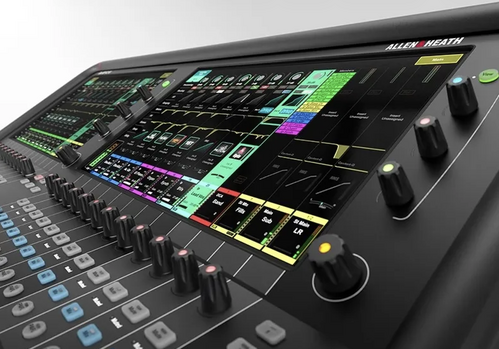
AUDIO - FOH Checklist
Set up (Arrive at 7:15am):
Sound Check:
Pre-Service:
During Service:
Shut down:
- Roll case for FOH Console and Waves audio console out (Back Center)
- Unbox FOH console first and fold up console. Pull screen monitors out of side door
- After putting doors back in place below, unbox Waves console
- Place Talkback mic on console
- Ensure FOH board is dead center and lock in place
- Move Waves console just to its right and lock in place
- Run FOH audio snake from back wall around left side (looking at stage) to back of the console
- At back wall side 1.
- At console side
- Plug in network/cat line purple into the blue audio box and make sure its plugged all the way in
- Plug in network/cat line labeled S-Link into the back of the console labeled S-Link
- Plug in audio lan cable into the network port on console
- Plug in main lan into the Network port on Waves Rack internet label
- Grab 4 channel blue snake from back of Waves rack on bottom shelf and plug channel 1 & 2 on back right waves rack 1RU and also channel 1 & 2 on FOH console input 1 & 2
- Grab monitor stand and place on Waves case just right of where FOH engineer stands
- Set up both screens you took out earlier from FOH console
- As you stand facing the stage, left screen you will plug in HDMI into the back of the Waves case marked Waves HDMI port, plug in power to electrical strip on back of waves. Plug power into back of monitor and plug HDMI into HDMI 1
- As you stand facing the stage, right screen you will plug in HDMI into the back of the Waves case marked Mac Mini HDMI port, plug in power to electrical strip on back of waves. Plug power into back of monitor and plug HDMI into HDMI 1
- Place USB dongle with mouse and keyboard to rear mac usb port on Waves case
- Run Avantis console power plug to back of Waves console to give power
- Run extra xlr cable over to Lighting console to get click, guide and tracks to stay on time during Worship. Plug into output ???????
- Power on battery backup which will give power to both the road cases
- Power on left mac mini
- Load Spotify (for in house music)
- If Avantis FOH console didnt power up, flip the power strip to the on position on the back of the console and light will light up red
- Load your show (Current User)
- Open Waves Sound grid on left computer screen
- Open Logic Pro on right screen to be able to record
- Load setup template (deselect the use soundgrid checkbox and then load)
- Once it loads, don’t select anything other than the red “R” record button on the first track along with the orange “I”
- Test in house audio is working by playing spotify. If not make sure the “main” channel is up to 0 on FOH console and House music is up on the fader (May need to scroll thru pages to find it)
- Test Abelton/Playback to make sure you have all track channels coming from the stage. Have someone press the spacebar on tracks rig on stage if needed.
- Test ProPresenter to make sure it is working from trailer OR flypack system
- Grab Pastor mic and headset from Green room and have ready to put on the lead Pastor for the day
Sound Check:
- The FOH engineer should let the Worship Pastor know about 7:35am that there is 5 minutes left until sound check for band
- Sound check should start promptly at 7:40am for Band. Worship team arrival is 8:00 am and sound check starts at 8:15am for them. FOH engineer will greet the team thru the in ear monitors and let them know your name and you are here to help them today
- Complete an entire line check of all instruments, mics, & talkback mics to ensure everything is working properly and there is a signal
- For anyone on a wireless pack, go thru each instrument to see if anyone needs more or less of each instrument in the in ears by starting with drums
- For a sample of what Sound check should sound like, listen to this mp3 file
Line Check - Audio.mp3 - Once line check is complete, turn over to the Music Director (MD) to get the first song going for testing. Also let the MD know that at the end of the 1st song, we will stop tracks to see if anyone needs more or less of anything in their in ears
- Immediately start the recording on Logic Pro to be able to do Virtual sound check right after rehearsal
- Stop recording right after all songs have been complete on Logic Pro
Pre-Service:
- See if there is any audio or videos needed to be played during the message from Propresenter to be prepared during service
- Test Host mic and Pastor mic to make sure they are good to go and get the Pastor headset mic to whomever is preaching and get them all set up properly
- Make sure you have a good handle on who is leading each song for the service
- Attend Serve Team prayer time at 9:25am
- Play House music via Spotify on the House fader right after the Serve Team prayer time.
- Go into Scenes on the FOH audio console and make sure the “Sanctuary to Lobby” is clicked and hit the Go button
- At the 5 minute mark, fade House music down and fade ProPresenter fader up to play service intro video
- Go on the Logic Pro computer and move the bar line over about 2 measures and start recording on Logic Pro again for the actual service. We may use this recording later on a CCW Worship YouTube video so its important to record
During Service:
- Make sure right when ProPresenter video is finishing up about 30 seconds left that you bring up faders for Band and Vocal
- Make sure db range doesnt exceed 92 db
- Make sure whomever is leading each song is up slightly above every other vocalists
- Right after Worship, make sure you have the Host mic up and ready to go for whomever is the Host for the day
- Stop recording on Logic Pro by pressing the record button. Red light will go off.
- Make sure ProPresenter volume is up for the 90 second countdown and also the sermon bumper video
- Leave Pastor mic down until right at the end of the sermon bumper video and then turn it up
- If any audio/videos are needed, be ready to play accordingly
- At completion of service, play Spotify music Worship Playlist while people are exiting out for about 5 minutes
Shut down:
- On Logic Pro, click on the close app
- Once it ask you to save it, create a file name like 230625 (YYDDMM) and save it on the desktop
- Power down both computers (Waves and Mac Mini)
- On the avantis FOH console, click “” to power it down all the way
- Once it powers down, click the battery backup button and hold down for about 2 seconds to power the entire unit down.
- Place all parts back where you got them from to be “Show Ready” for the next service
- Close both consoles up and get the FOH Audio and power snakes and store both units in the green room